Authentication using Geobase in a Vue project.
This document explains the authentication logic in the Vue project using Geobase for handling user sign-up and sign-in processes.
This guide demonstrates how to implement authentication in a Vue project using Geobase, focusing on client-side authentication and session management.
Authentication Form
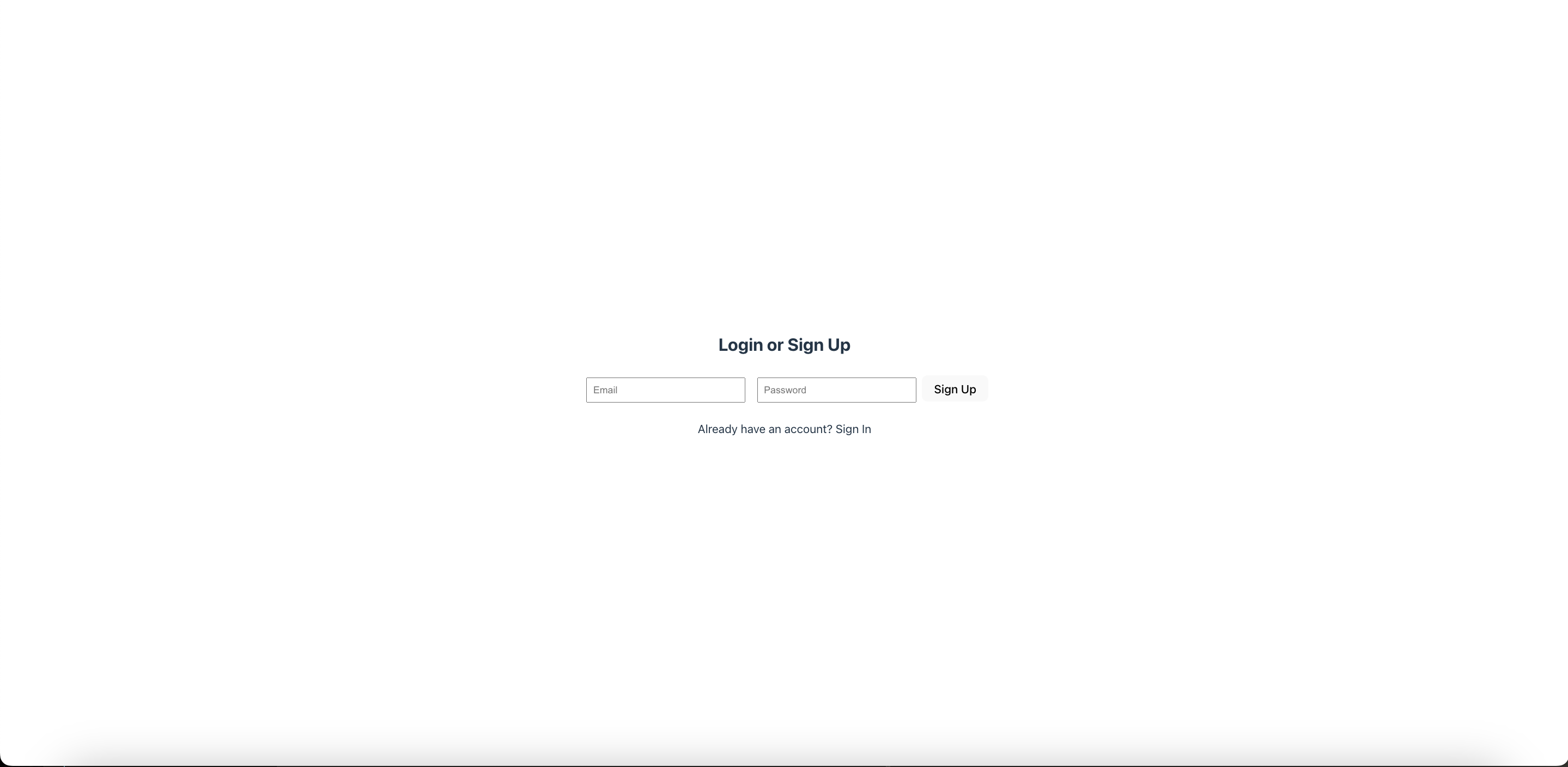
The Home.vue component includes a basic login/sign-up form.
GitHub Repository
You can find the complete source code for this authentication system in the following GitHub repository:
Code Overview
<template>
  <div>
    <h2>Login or Sign Up</h2>
    <form @submit.prevent="handleAuth">
      <input v-model="email" type="email" placeholder="Email" required />
      <input v-model="password" type="password" placeholder="Password" required />
      <button type="submit">{{ isSignUp ? "Sign Up" : "Sign In" }}</button>
    </form>

    <p @click="toggleAuthMode" style="cursor: pointer;">
      {{ isSignUp ? "Already have an account? Sign In" : "Don't have an account? Sign Up" }}
    </p>
    <p v-if="error" style="color: red;">{{ error }}</p>
  </div>
</template>

<script lang="ts">
import { defineComponent, ref } from "vue";
import { Geobase } from "../../lib/geobase";
import { useRouter } from "vue-router";

export default defineComponent({
  name: "Home",
  setup() {
    const email = ref("");
    const password = ref("");
    const error = ref("");
    const isSignUp = ref(true);
    const router = useRouter();

    const handleAuth = async () => {
      error.value = "";
      try {
        if (isSignUp.value) {
          const { error: signUpError } = await Geobase.auth.signUp({
            email: email.value,
            password: password.value,
          });
          if (signUpError) throw signUpError;
          alert("Check your email for a confirmation link!");
        } else {
          const { error: signInError, data } = await Geobase.auth.signInWithPassword({
            email: email.value,
            password: password.value,
          });
          if (signInError) throw signInError;
          if (data && data.user) {
            sessionStorage.setItem('user', JSON.stringify(data.user));
            router.push("/map");
          }
        }
      } catch (err: any) {
        error.value = err.message || "An unexpected error occurred";
      }
    };

    const toggleAuthMode = () => {
      isSignUp.value = !isSignUp.value;
    };

    return {
      email,
      password,
      error,
      isSignUp,
      handleAuth,
      toggleAuthMode,
    };
  },
});
</script>

<style scoped>
input {
  margin: 0.5rem;
  padding: 0.5rem;
  width: 200px;
}
button {
  padding: 0.5rem 1rem;
  cursor: pointer;
}
</style>Remember to handle errors gracefully in your authentication logic to improve user experience.
Key Features
-
Sign-Up and Sign-In Logic
- The
isSignUpflag toggles between sign-up and sign-in modes. - Uses Geobase client for authentication.
- The
-
Error Handling
- Displays errors returned during the authentication process.
- Catches unexpected issues and displays an appropriate message.
-
Redirection
- On successful sign-in, users are redirected to the
/maproute. - User information is stored in
sessionStoragefor session management.
- On successful sign-in, users are redirected to the
Geobase Client Setup
The Geobase client is initialized in geobase.ts using Geobase:
Ensure your Geobase client is correctly configured in geobase.ts to avoid authentication issues.
import { createClient } from '@supabase/supabase-js';

const GeobaseUrl = import.meta.env.VITE_Geobase_URL!;
const GeobaseKey = import.meta.env.VITE_Geobase_ANON_KEY!;

export const Geobase = createClient(GeobaseUrl, GeobaseKey);
Routing
Routes are defined in index.ts:
import { createRouter, createWebHistory } from 'vue-router';
import Home from '../components/Home.vue';
import MapScreen from '../components/MapScreen.vue';

const routes = [
  { path: '/', name: 'Home', component: Home },
  { path: '/map', name: 'MapScreen', component: MapScreen },
];

const router = createRouter({
  history: createWebHistory(),
  routes,
});

export default router;
Environment Variables
Ensure the following environment variables are set in your project:
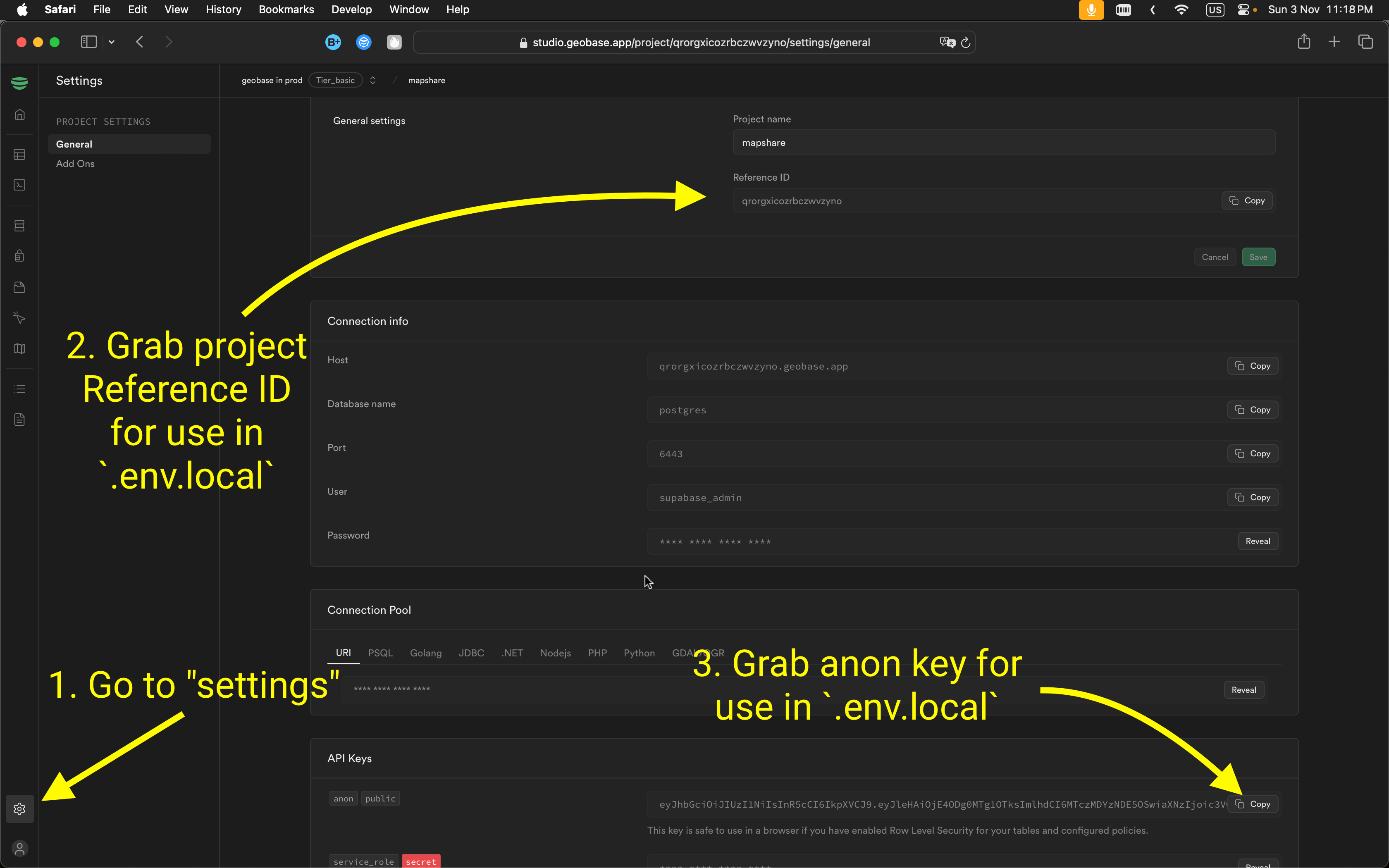
To connect your app to Geobase, configure these environment variables. Include them in a .env.local file for local development.
VITE_GEOBASE_URL=<Your Geobase URL>
VITE_GEOBASE_ANON_KEY=<Your Geobase Anon Key>
You can locate the project reference and anon key in your Geobase project settings.
Local Development
- Set Node.js version: Use Node version 21:
nvm use 21 - Install dependencies: Use your preferred package manager:
npm install # or yarn # or pnpm install - Start the development server with HTTPS enabled:
npm run dev --experimental-https
# or
yarn dev --experimental-https
# or
pnpm dev --experimental-https
Note: Without --experimental-https, the email verification links might redirect to https://localhost:5173/..., causing errors. You can navigate manually by removing https from the URL if needed.
Access the project at http://localhost:5173.
Learn More
For support and questions, join the Geobase discord community .